Customer communication
Set up abandoned cart recovery
Build a reminder sequence with the right audience, timing, messages and discounts, then verify delivery and results.
Reviewed
On this page
Abandoned cart recovery sends reminder emails from your PrestaShop store to eligible customers who left a cart without completing an order. The campaign is configured in the module; the phone is used to inspect carts and results. Your phone does not have to stay open for automatic reminders to run.
Set up the audience and sequence before enabling the campaign. You need a connected store with active recovery access and a working PrestaShop email configuration.
1. Check email and service readiness
Open Abandoned Carts Recovery in the module. If it shows an access or synchronisation warning, resolve that first. Saved campaign settings can remain visible while sending is paused.
Check the store's ordinary email delivery through PrestaShop's email settings. Recovery uses the store's mail transport; changing a setting in the phone cannot fix an SMTP or sender-domain problem.
Plan a short sequence before editing. For example: an initial reminder, a later follow-up and an optional final reminder. You can enable fewer than three steps. Discounts are optional.
2. Choose the audience and campaign rules
In Campaign rules, configure the following:
| Setting | Meaning and decision |
|---|---|
| Audience | All identified customers includes eligible customers for whom the store has an email address. Newsletter subscribers only narrows the audience to those marked as newsletter subscribers. Choose the audience appropriate to your store's customer communication policy. |
| Minimum cart value | Carts below this amount are skipped. The amount is in the store's default currency; other currencies are converted for the comparison. |
| Sender / store name | The store name used in the email presentation. This is not a replacement for the sender address or mail transport configured in PrestaShop. |
| Quiet hours | A time window during which automatic reminders should not leave the store. A reminder becoming due during that window is delayed rather than sent at its nominal hour. |
 Choose who may receive reminders and when automatic sending is allowed before editing the email sequence. Enlarge ↗
An anonymous cart with no customer email cannot receive a reminder. Customers who unsubscribe from cart reminders are excluded. A campaign audience setting is a product filter; it does not independently establish permission to send marketing messages.
3. Set the reminder timeline
Expand First reminder, Second reminder and Final reminder in Email sequence. For each step you want to use, enable it and set Send after (hours).
Every delay is measured from the cart's abandonment time, not from the previous email. A sequence of 1, 24 and 72 means approximately one hour, one day and three days after abandonment. It does not mean another 24 hours after the first message and another 72 after the second.
Enabled delays must increase, and each delay can be between 1 and 336 hours. Disable any step you do not intend to send. Do not leave an enabled step with an unfinished message.
 Timing and discount belong to each reminder separately. The values in this screenshot are an example, not recommended defaults. Enlarge ↗
Automatic processing, quiet hours and eligibility checks affect the actual send time. Treat the configured hour as the earliest point at which that reminder becomes due, not a guarantee of delivery to the inbox at an exact minute.
In module version 1.8.5: automatic reminders for the same cart wait at least 20 hours after the previous send attempt, even if that attempt had an uncertain outcome. The settings may accept a shorter sequence, but the next email will wait for this minimum gap. Each step also has a 72-hour window after its configured delay; once that window passes, the step is skipped. If several steps are already due when sending resumes, the latest eligible step is selected rather than sending all missed emails together. A 1, 2, 3 hour sequence therefore does not produce three hourly emails in version 1.8.5. Check the installed version in PrestaShop's Module Manager when timing differs from your settings.
4. Decide whether to offer a discount
Set Discount (%) to 0 for a reminder without an offer. If you use discounts in later reminders, they must stay the same or increase; the module rejects a lower discount in a later enabled step.
Expand Coupon rules: used only by reminders that carry a discount and review:
- Coupon code prefix: letters and numbers identifying recovery coupons.
- Coupon validity (days): how long the generated coupon is usable.
- Coupon minimum order: the minimum purchase needed to use it.
- Allow combination with other coupons: whether another coupon may be used alongside it.
Check these rules against the offer written in the email. A message promising “10% off any order” would be misleading if you configured a minimum purchase. A valid recovery coupon does not force unavailable stock or an otherwise invalid order through checkout.
5. Write each email in the right language
Select Email template language and load that language before editing. Save your current edits before changing the language, because loading another language replaces the template fields currently on screen.
For every enabled reminder, complete Subject, Heading, Message and Button label. Keep the message connected to that reminder's timing and offer. The first message can simply help the customer return to the cart; a final message should not invent a deadline that the configured coupon does not have.
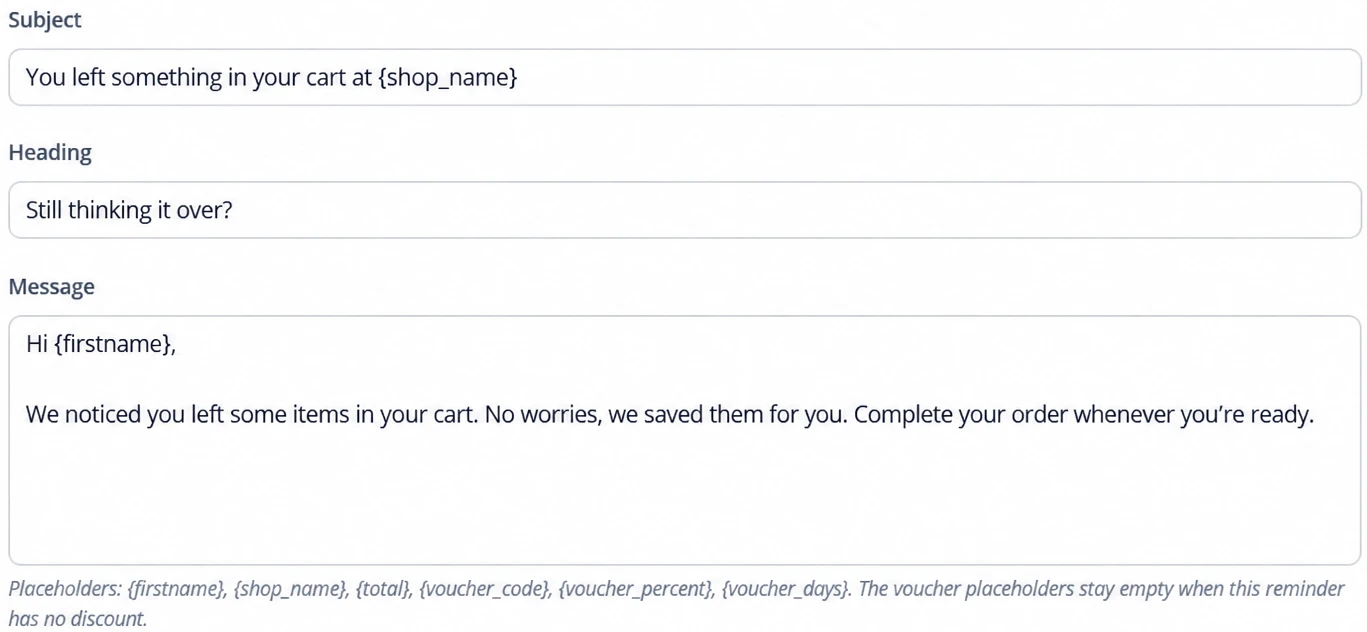 Use the template fields and supported placeholders. Keep the message consistent with this step's timing and coupon rules. Enlarge ↗
Available placeholders are {firstname}, {shop_name}, {total}, {voucher_code}, {voucher_percent} and {voucher_days}. Copy the names exactly, including braces. Voucher placeholders are empty in a reminder with no discount, so its text must still read correctly without them.
Review the preview for every enabled step and every store language you intend to use. Selecting a language for editing does not translate your custom message into the other languages.
6. Save and send a controlled test
- Save the campaign and wait for Abandoned Carts Recovery campaign saved.
- Open Tools: test email and manual reminder. Under Send a test email, select a reminder and enter an email address you control.
- Choose Send test, then check the received email's subject, store name, text, formatting and button. Also inspect spam if it is missing.
- Repeat for the enabled steps and relevant language templates, especially those containing coupon placeholders.
- Once the campaign is ready, enable Automatic cart reminders and save. Reopen the tab to confirm the saved state and check that no service-access warning remains.
A successful test email verifies the email path and template. It does not prove that a real cart meets the campaign's audience, value, timing and service-access conditions. Check an eligible test cart separately when verifying automatic recovery.
Send a manual reminder is a real send to a cart's customer, not the template preview. It uses a Cart ID and the selected or next available step. Use it only when you intend to contact that recipient; it cannot be used to send to an anonymous or unsubscribed customer, and it does not make an already-sent step freely repeatable.
7. Check carts and recovery results
In the app, open Analytics → Abandoned carts and inspect a cart to see the available cart and reminder information. In the module, use the campaign summary and counters to check activity.
Read the time windows printed on the counters. Reminders sent today, Carts recovered today and Recovered value, 30 days do not cover the same period.
A recovery requires an attributed valid/paid order; an email being sent, opened or clicked is not a recovered sale. Recovery attribution uses a 14-day window. Recovered revenue is also a different measure from the current value of all abandoned carts.
Why a reminder might not be sent
Work through these checks in order:
- Campaign and step: automatic reminders are enabled, at least one step is enabled, and the settings were saved.
- Service access: the module has no recovery-access or synchronisation warning. The manual action also requires service access.
- Customer and cart: a usable customer email exists, the customer has not unsubscribed, the audience/value rules match, and the cart has not become an order. Automatic recovery favours the customer's latest eligible cart.
- Timing: the selected delay has been reached, quiet hours do not currently block sending, the step is still within its 72-hour window, and it has not already been sent. In module 1.8.5, also allow at least 20 hours since the previous send attempt for the same cart.
- Mail delivery: a controlled test can be delivered through the store's configured mail transport. “Sent” does not guarantee that the recipient's provider placed it in the inbox.
If these checks do not explain the result, send support the campaign status, step, expected send time and exact error. Remove customer details and recovery links from screenshots.